

A Guide To Advanced Manual Options
Unito’s no-code interface covers most use cases with deep configuration capabilities. That said, Unito has a slew of extra capabilities under the hood that cover those few cases where an advanced or tailored setting is really needed.
How to use advanced options
Section titled “How to use advanced options”Most of these advanced options involve pasting a bit of configuration (in JSON format) into the Advanced features box in your Unito flow of choice.
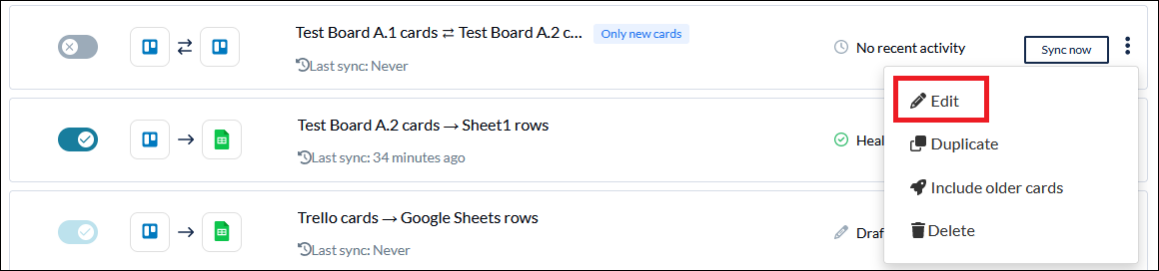
You can find this box in just a few clicks. From the flow list, click on the upright ellipses next to the flow you want to apply an advanced option to.

From there, hit Edit in the dropdown.
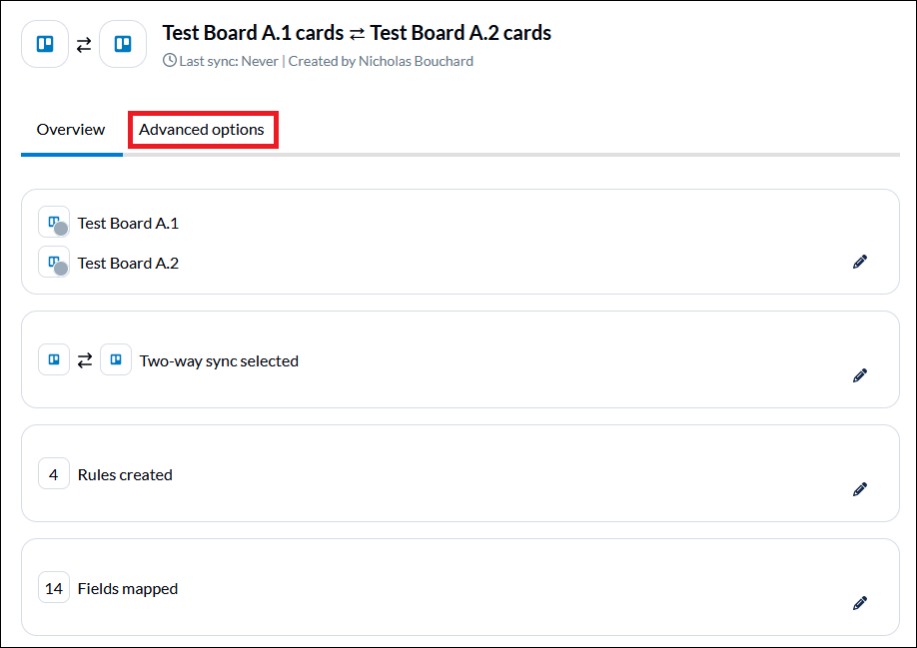
This’ll open your flow. Hit Advanced options.
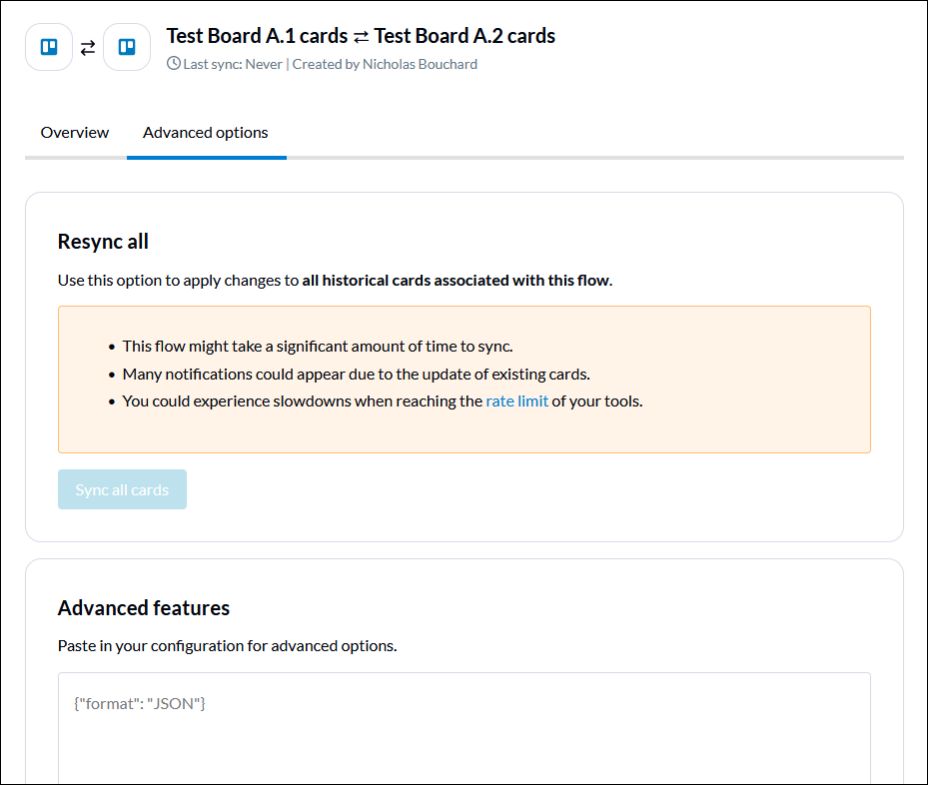
You’ll find the Advanced features box at the bottom of this screen.
translateMentions and breakMentions
Section titled “translateMentions and breakMentions”The translateMentions manual option allows you to sync @Mentions from tool to tool. That means you could mention a user in one tool and create a link to that mapped user in the other tool.
Before you can apply this advanced option, you need to make sure that all your users are mapped correctly.
All you need to do is navigate to active users screen in the app, search for a user, and merge active users between tools.
After your users are mapped, you can contact our product specialists to have this option enabled in your flow.
MappingFallbackMode
Section titled “MappingFallbackMode”By default, Unito automatically maps fields, lists, and sections that have the same name. For example, say you have To Do, Doing, and Done lists in two Trello boards.
Even if you only map To Do and Doing, we automatically map the Done lists. You can prevent this from happening by contacting our product specialists to have the MappingFallbackMode manual option applied to your flow.
onFilterOut
Section titled “onFilterOut”When a work item is filtered out of a flow — say because it changes to an assignee not covered by your rule — we automatically archive the copy. This is to avoid clutter in your work management tools.
With onFilterOut, we can change this default setting in a few different ways:
-
Closing the original work item
-
Closing both work items
-
Keeping work items in sync
-
Doing absolutely nothing
Simply paste this JSON configuration into the ‘Advanced Features’ section of your flow
Section titled “Simply paste this JSON configuration into the ‘Advanced Features’ section of your flow”`{ "A": { "options": { "onFilterOut": "ignore" } }, "B": { "options": { "onFilterOut": "ignore" } }}`plaintext
earliestModifiedSince?
Section titled “earliestModifiedSince?”With earliestModifiedSince, you can specify a timestamp to limit the number of work items fetched by initial syncing and resyncs.
When this is implemented, your flow will only sync work items that have been created or modified after that timestamp.
PreferredTimezone
Section titled “PreferredTimezone”If you want to prevent any time formatting issues from happening between tools, you can use the preferredTimezone manual option to standardize time zones across tools.
Not sure how to add this to your flow? Don’t hesitate to reach out to our product specialists for help.
Other advanced options
Section titled “Other advanced options”If there’s another configuration you wish was possible, reach out to our product specialists to find out if it’s available.